A Simple Password Manager Setup That Actually Works
Set up a password manager with a unique master passphrase, stronger sign-in, independent recovery, and a migration process that protects exported credentials.
By FindTheWeb Editorial
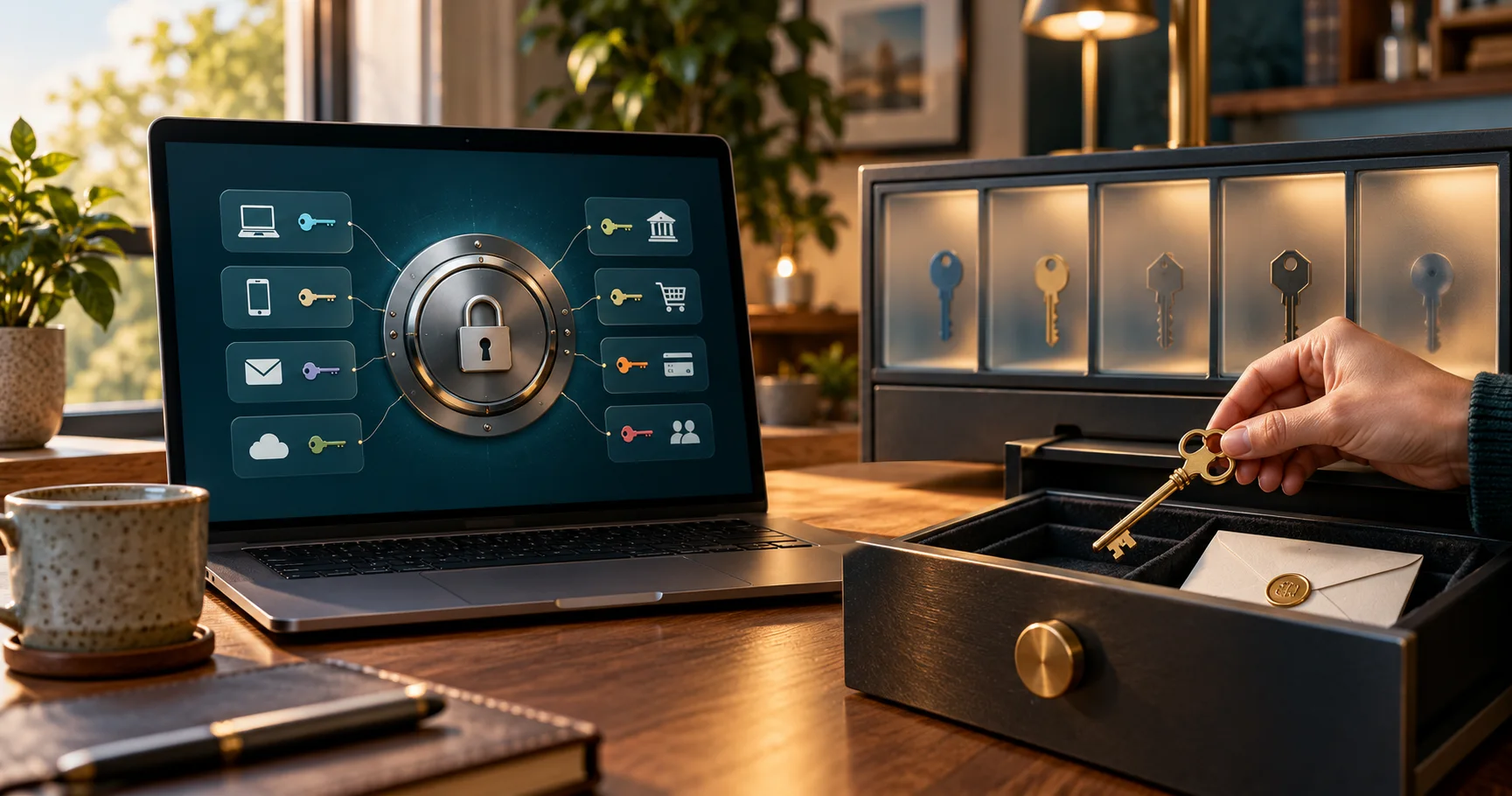
Start with three accounts: your main email, the account used to recover it, and one everyday login. Give each a unique password, confirm that you can sign in again, and establish a way back into your password manager without your usual phone. This small setup exposes mistakes before you move your entire digital life.
Understand what unlocks what
Install the manager from its official website or your device's official app store. Read its setup and recovery documentation before adding important credentials. Identify whether access depends on a separate master password, an existing account, a device credential, or some combination. The steps below apply where those features exist; managers do not all use the same security model.
Distinguish three actions: signing into the service, unlocking a vault on an enrolled device, and recovering encrypted contents after losing access. A fingerprint may make local unlock convenient without replacing the secret needed on a new device. A successful account-password reset may not recover the vault. Write down the provider's actual requirements rather than assuming support can reverse any lockout.
- Identify sign-in, vault-unlock, and recovery requirements.
- Create a unique master password where required.
- Enable supported MFA or passkeys and establish independent recovery.
- Import carefully or add a few accounts manually.
- Verify fresh sign-in, then replace reused passwords.
Make the master password unique and memorable
Where a master password is required, use a long passphrase created specifically for this vault. Aim for at least 16 characters, preferably substantially longer, using several randomly chosen, unrelated words. Do not use a quotation, personal story, or a variation of your email password. Never reuse an example from an article. NIST's password guidance emphasizes length and describes passphrases as a way to make long secrets manageable.
Memorize it through practice. If you keep a written emergency copy, store it in a physically secure place under your control, separate from the device you normally use. A screenshot in an ordinary photo library or a note in the very vault it unlocks does not provide independent recovery. Consider who could access the paper and whether a trusted person needs documented emergency instructions.
Set the vault to lock after inactivity and when your device locks, where supported. Choose a timeout you can tolerate without leaving it permanently open. Check what happens after restarting the device: local biometric unlock and fresh account sign-in may have different requirements.
Add MFA or passkeys without creating a trap
Enable the manager's supported multifactor authentication. Where available, use a passkey or security key for phishing-resistant sign-in. NIST distinguishes these protections from ordinary passwords and manually entered one-time codes: passwords and OTP authentication are not phishing-resistant. See NIST's authentication guidelines. Authenticator codes still add protection, but a convincing fake login can relay them.
Check what the setting protects. MFA at account sign-in does not necessarily prompt every time a cached vault unlocks. Likewise, registering a passkey for an account does not automatically replace every older login or recovery route. For example, Google's passkey documentation says adding a passkey leaves existing authentication and recovery factors in place. Review fallback methods instead of assuming the new method removed them.
Keep a supported way into the manager that does not depend entirely on its locked contents: a separately stored recovery code, an additional enrolled security key, or another documented method. Storing the manager's only authenticator seed inside that same vault creates a circular dependency. Storing other accounts' codes there may be convenient, but concentrates their secrets together; make that choice deliberately.
Build a recovery path you can explain
List what you would need if your phone were lost and your laptop signed out. Check recovery email access, required secrets, enrolled devices, and any waiting period. Protect the recovery email with its own unique password and MFA. Do not let it depend solely on a credential or second factor available only inside the inaccessible vault.
Read the provider's instructions for recovery codes: their purpose, replacement rules, and whether they restore account access or vault contents. As one account-specific example, Google backup codes substitute for the second verification step, are single-use, and become invalid when a new set is generated. Those rules are not a promise about another service's recovery system.
Keep your current working session while checking a documented alternate sign-in route on a trusted device. Do not deliberately erase your only enrolled device to rehearse recovery. Mark any consumed code and update the emergency copy when codes change. If documentation leaves a gap, resolve it before placing irreplaceable credentials in the vault.
Move credentials without leaving an exposed copy
For a small collection, manual entry avoids creating a bulk export. For migration, compare the source and destination's official instructions first. Check whether passwords, passkeys, notes, and attachments transfer; a successful password import does not establish that everything else moved.
Prefer a supported direct or encrypted transfer when both ends support it. If CSV is required, treat the file as exposed credentials. Mozilla explicitly warns that its CSV login export is readable and should be deleted after use. Prepare the destination first, use a trusted device, and keep the temporary file out of shared or automatically synced folders. Never email it or upload it to a conversion website.
Import promptly. Inspect several entries for correct usernames and website addresses, then verify real sign-in before removing the old credential store. Delete the temporary export immediately afterward and clear its trash copy. Chrome's import guidance also requires deleting the password file. Deletion is not a guarantee of forensic erasure or removal of copies already synced elsewhere; avoid creating those copies in the first place.
Hypothetical example: a migration with one mistake
This is a hypothetical scenario, not a tested result. Noor moves her email and shopping logins into a vault. Before enabling MFA, she realizes the only copy of the vault's authenticator setup would be stored inside it. She instead establishes the provider's supported independent recovery method and secures its recovery material separately.
She then replaces the shopping account's reused password with a generated unique one. She saves the new value, confirms sign-in through the genuine website, and checks that the vault entry matches. Importing the old password alone would not have fixed reuse.
Use a short finishing checklist
- Can I unlock after a restart and explain fresh-device sign-in?
- Are the master password and important account passwords unique?
- Can I complete supported recovery without the locked vault or missing phone?
- Have I verified migrated entries and removed temporary exports?
- Have I enabled available stronger authentication on email and other important accounts?
Keep generating a different password for each remaining account. Visit saved, verified addresses when signing in. If autofill unexpectedly refuses, inspect the domain instead of immediately pasting the password. A manager cannot make an attacker-controlled page trustworthy, prevent every stolen session, or protect secrets on a compromised unlocked device. Keep devices updated and refuse unexpected requests for your master password or recovery material.