Reliable Spreadsheet Automation Without Data Chaos
A practical guide to spreadsheet automation that survives messy data, duplicate triggers, quotas, partial failures, and human edits.
By Administrator
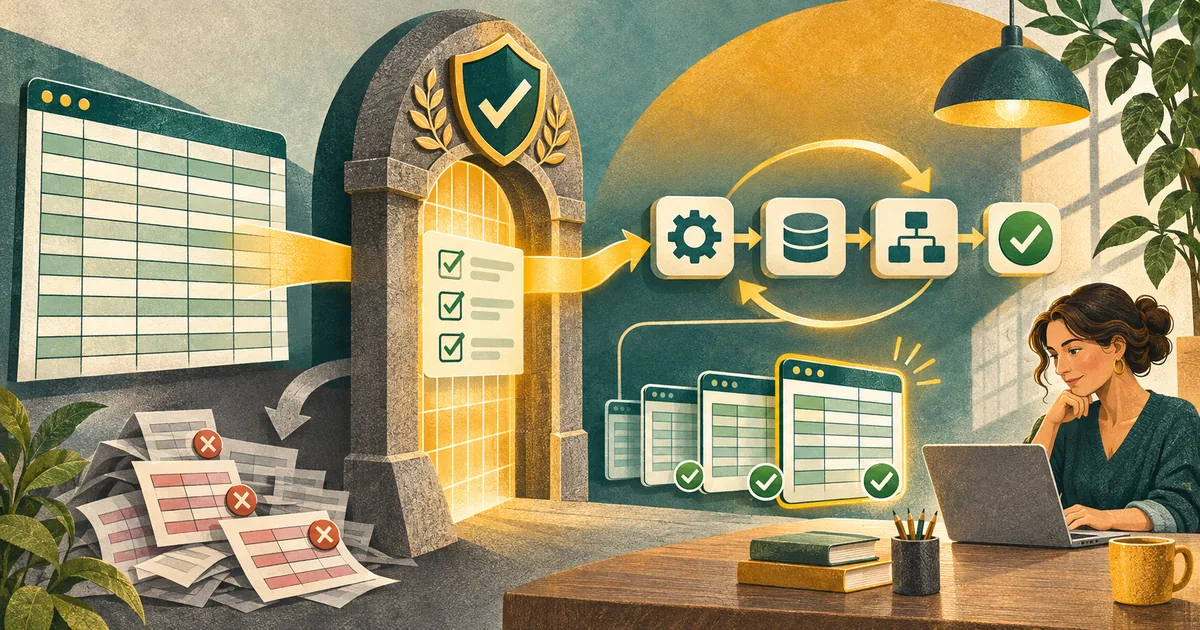
A spreadsheet often starts as a shared list. Someone adds a reminder, another person writes a formula, and soon a script sends invoices or updates a customer record. The automation looks small because the interface is familiar. The data risks are not: duplicate rows, silent formula changes, ambiguous dates, partial writes, and scripts that run twice can turn a useful sheet into an unreliable system.
Reliable spreadsheet automation begins by treating the sheet as an interface with a contract. Define what each column means, how a row is identified, who may edit it, and what should happen when the input is invalid. Google Sheets data-validation guidance shows how dropdown rules can constrain a cell's values. That helps people enter cleaner data, but it is only one layer. The automation still needs to check input before it acts.
Separate raw input from trusted records
Use a clear intake area for human edits or imports. Create a validation step that checks required fields, types, allowed values, and uniqueness. Only accepted rows move to the table used by downstream jobs. This separation makes failures visible: a rejected row remains available for correction without contaminating reports or triggering external actions. Put an error reason beside the row instead of silently skipping it.
Choose a durable row identifier. A row number changes when people sort or insert lines, so it is a poor external key. A stable ID can be generated when the record is first accepted. The automation should use that ID for updates and deduplication. If the sheet is a temporary interface to a database, store the database record ID after successful creation. Do not infer identity from a person's name or a mutable email address alone.
Design every action to survive a retry
Triggers and scheduled jobs may run again after an interruption. A workflow that sends an email or creates an order should check whether it has already completed the action for that record. Store a status, a timestamp, and where possible an external transaction ID. The safe question is not “Will this script run exactly once?” but “What happens if it runs twice?” Make repeated executions produce the same final state, or at least stop before repeating an irreversible step.
Use a small state machine: new, validated, processing, complete, and failed. Include a retry counter and an error field. If the external service times out after receiving the request, the result may be uncertain. Reconcile with that service using the stable ID before trying again. A red “failed” cell should invite investigation, not an automatic blind replay that could duplicate a charge or message.
Know the trigger and quota limits
Google Apps Script trigger documentation distinguishes simple and installable triggers and describes the events that actually fire. A script writing a value is not equivalent to a person editing a cell. This matters when one automation expects another trigger to continue the workflow. Test the real event path instead of assuming a chain of edits will behave like manual activity.
Google's quota documentation states that Apps Script services have daily quotas and execution limits that can change; a limit can stop an execution with an exception. Batch work where the API allows it, process a bounded number of rows per run, and record a cursor so the next run can continue. An automation that quietly stops at a quota boundary should alert an owner and leave unprocessed rows identifiable.
- Accept edits or imports into a raw input area.
- Validate required fields and assign stable IDs.
- Move eligible rows into a controlled queue.
- Check idempotency before calling external services.
- Record the external result and completion status.
- Reconcile failures and archive a versioned snapshot.
Protect formulas and make ownership clear
Hide-and-hope is not a permission model. Protect formula ranges, headers, and configuration tabs from routine edits. Give collaborators access only to the areas they maintain. Google's sheet protection guidance explains how to protect ranges, while also noting that people who can edit may still copy the workbook. Protection reduces accidental change; it is not a security boundary for secrets. Keep API keys in an appropriate secret store, never in a visible cell or copied script.
Document the owner of each automation and the meaning of each status. A short README tab can state the input contract, expected schedule, destination system, error contact, and recovery procedure. When a teammate leaves, the workflow should not depend on an undocumented personal account. Review access and ownership before migrating the sheet or changing the script.
Test with messy data before trusting clean reports
Build a disposable test sheet with blank cells, duplicated IDs, dates in different formats, formulas that return errors, hidden rows, and Unicode names. Include one external request that succeeds and one that times out. Confirm that the script does not publish the wrong data, send twice, or claim completion without a recorded result. Check behavior after a sort, a new column, and a renamed tab. These are routine edits in a sheet and common causes of hidden breakage.
Suppose a hypothetical volunteer group uses a sheet to assign weekly shifts. The original script sends every new row to a mailing list. A volunteer sorts the sheet, then the script reads row numbers as IDs and sends duplicate invitations. A safer version assigns an immutable shift ID, validates email and date, records the mail-service message ID, and skips completed shifts on retry. This is an illustrative example, not a claim about a particular service.
Keep a recovery route for human operators
Before major edits, save a versioned copy of the sheet and export a machine-readable snapshot of accepted records. Make the recovery procedure explicit: stop the trigger, identify the last successful record, compare the destination system, correct the source, then resume from a checkpoint. Test restoration on a disposable copy. A backup you have never opened is a comforting story, not a verified recovery plan.
As volume grows, evaluate whether the sheet should remain the source of truth. It can still be an excellent input or review interface while a database owns durable records and constraints. Move when the cost of reconciliation, audit, or concurrent editing exceeds the convenience of the grid. The transition should preserve stable IDs and an export path so users are not locked into the first implementation.
Practical checklist
- Define columns, types, required fields, and row ownership.
- Use validation and recheck data in code.
- Assign stable IDs before external actions.
- Make retries safe and record external results.
- Handle trigger behavior and quota failures explicitly.
- Protect formulas and keep secrets out of cells.
- Test duplicate, blank, reordered, and partial data.
- Keep snapshots and a rehearsed recovery procedure.